
Step 1: Create a bucket in Impossible Cloud Storage
You need to create a bucket in your Impossible Cloud Storage console. Here is a link to the Impossible Cloud Storage documentation, which includes detailed instructions and screenshots for creating a bucket.
If you plan to use Nakivo's immutability feature, make sure to enable versioning and object lock only, and do not set a default retention on the bucket. Nakivo applies retention per object when it writes backup data. If the bucket has a default retention period configured, Nakivo cannot complete the validation it performs when the bucket is selected, and the repository creation fails.
Step 2: Create a dedicated IAM user and access key
Do not use your root user credentials in Nakivo. Instead, create a dedicated IAM user with programmatic access and generate an access key and secret key pair for it. This limits the impact if the credentials stored in Nakivo are ever exposed.
Follow the secure programmatic access guide for step-by-step instructions. Store the access key and secret key in a secure location. You will need both in Step 7.
Step 3: Install Nakivo Backup and Replication
Proceed by installing Nakivo on your system. Follow the instructions to complete the installation process.
Step 4: Add new storage inventory Item
Open the Nakivo web interface, browse to Settings -> Inventory. Click '+'.
Step 5: Select platform
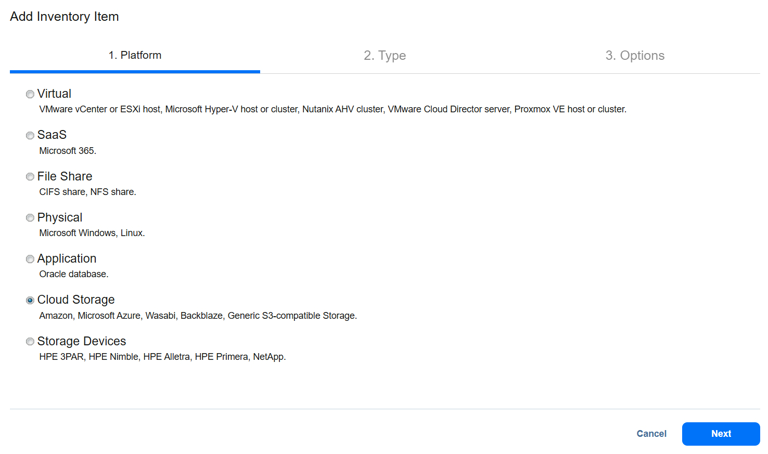
Select 'Cloud Storage' (Amazon, Microsoft Azure, Wasabi, Backblaze, Generic S3-compatible Storage) and click 'Next'.
Step 6: Select the storage type
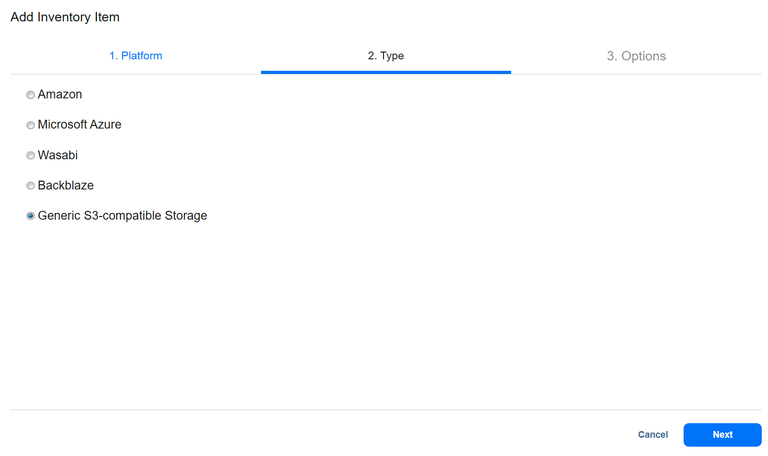
Select 'Generic S3-compatible Storage' and click 'Next'.
Step 7: Select the storage options
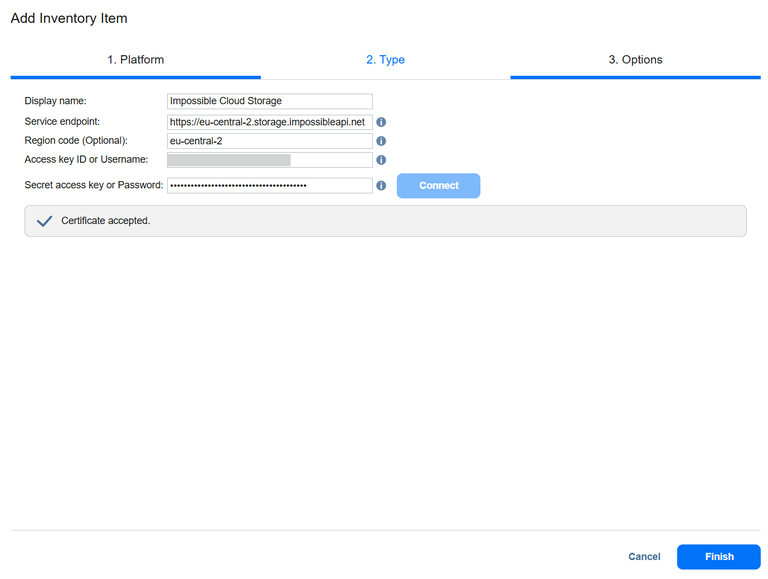
Enter the storage options and click Connect. When a pop-up with 'Certificate details' appears, click 'Accept'. Click 'Finish'.
Step 8: Complete adding new inventory item
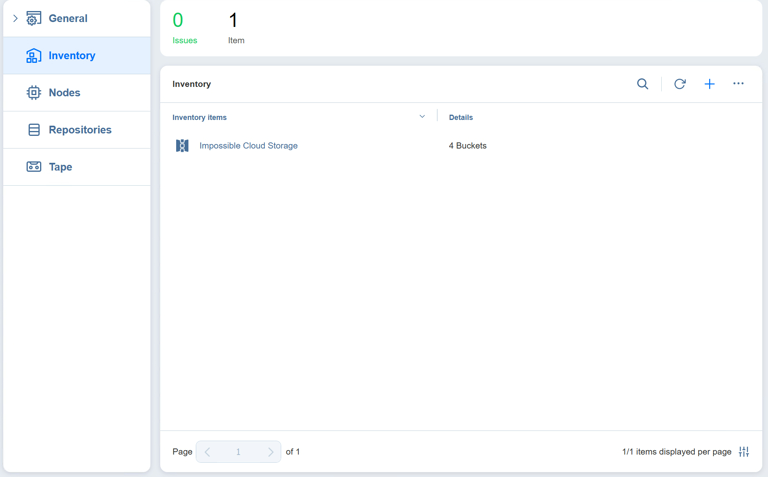
Wait until the new inventory item has been added.
Step 9: Add new Repository
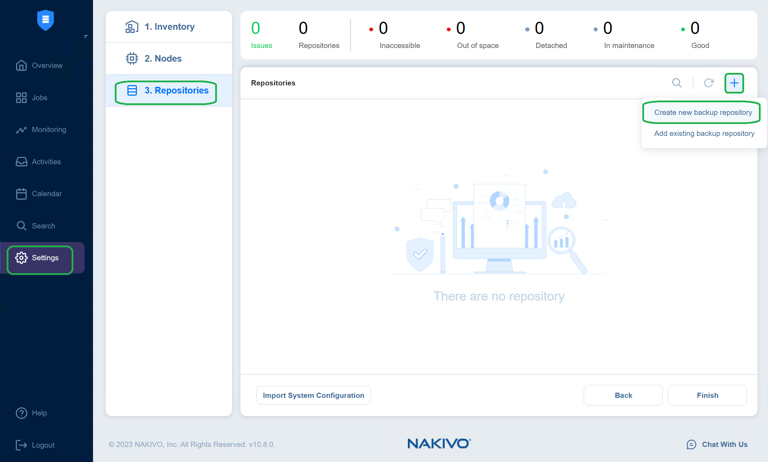
Browse to Settings -> Repositories. Click "+" - > Create new backup repository.
Step 10: Create New Backup Repository
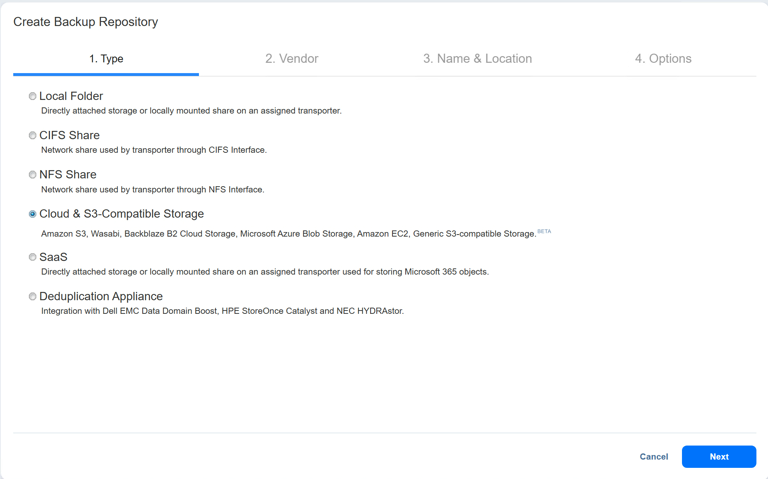
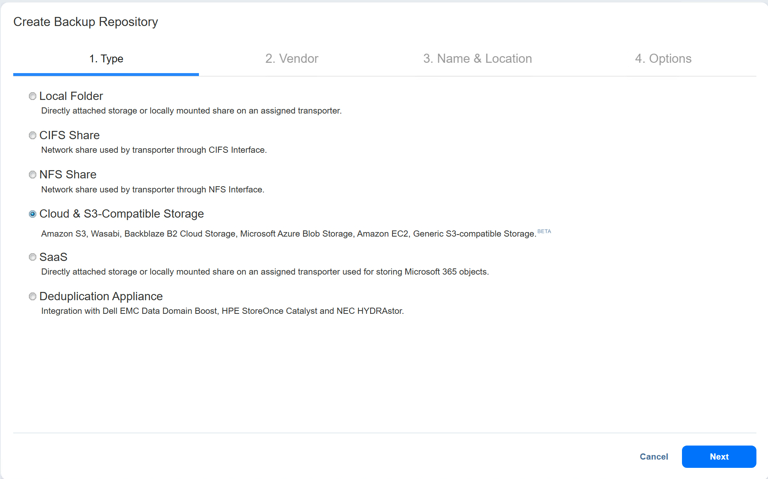
Select 'Cloud & S3 compatible Storage' and click 'Next'.
 Step 11: Select S3 compatible storage
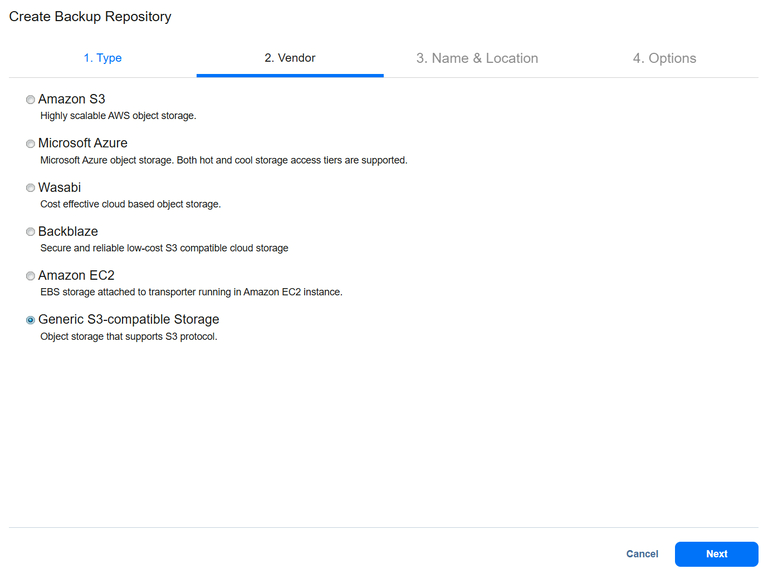
Select "Generic S3-compatible Storage' and click 'Next'.
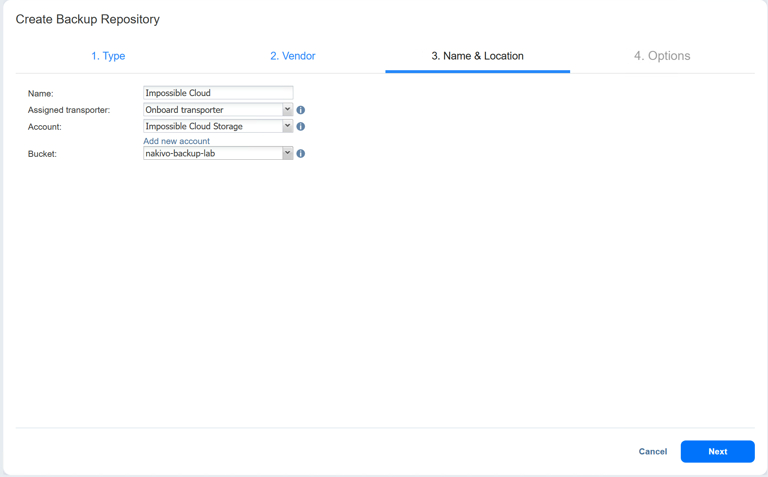
Step 12: Configure Name
Give your new repository some comprehensive name and select the inventory item you previously created from the 'Account' drop-down menu. Select a bucket for your backup data from the 'Bucket' drop-down menu and click Next.
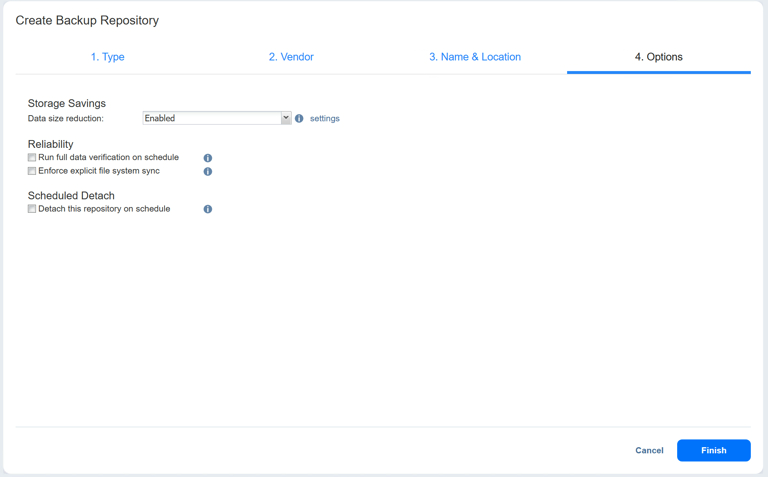
Step 13: Configure backup repository options
Configure options and click Finish.
Wait until the new backup repository has been added. You are now ready to begin backing up your data to Impossible Cloud.